

Every network technician’s nightmare is complaints about Internet speed being slow. It could be so many different things, one of the frequent requests is to question “are we getting the speed we paid for?”
Instead of being onsite at a site to plug our laptop to the network to run a speed test, FortiGate has a built-in utility for this called iperf3.
Consider running this tool after-hours to minimize any disruption and to also have a non-peak hour test. This tool will consume a lot of traffic as it’s goal is to test the limits of your bandwidth.
Running Upload Speed Tests

In this scenario, you are going to be telling the FortiGate to reach out to a server hosting iperf as a server and upload data (we’ll get to download shortly).
- If you are testing internet bandwidth, you’ll want a publicly hosted machine with
iperf3.
Setting up the iPerf Server
If you want to skip the server setup, you can try various public iperf servers, but do keep in mind that these documented servers could stop serving iperf services at any time or may be busy with another request.
- In my testing, about 33% of the servers were actually working.
First, let’s setup our server. I have a Debian server hosted in Azure. We’ll first begin with getting our packages updated and then install iperf3
- This will put the utility in
/usr/bin, which should already be in your$PATH, meaning you can call it from anywhere in your terminal.
$ sudo apt update
$ sudo apt install iperf3

Installing:
  iperf3 libiperf0 libsctp1

## Find where iperf binary is located
$ which iperf3
/usr/bin/iperf3
Now, let’s go ahead and run this Debian public VM in server mode with the -s switch. This will automatically select 5201, but you can specify another port with -p
iperf3 -s
------------------------------------------------------------
Server listening on TCP port 5201
TCP window size:  128 KByte (default)
------------------------------------------------------------
Keep in mind that you will need to allow or open that port on this public server. This will depend on where you’re running it from. In Azure, we can specify a network security group (NSG) rule to allow port 5001 to this machine.
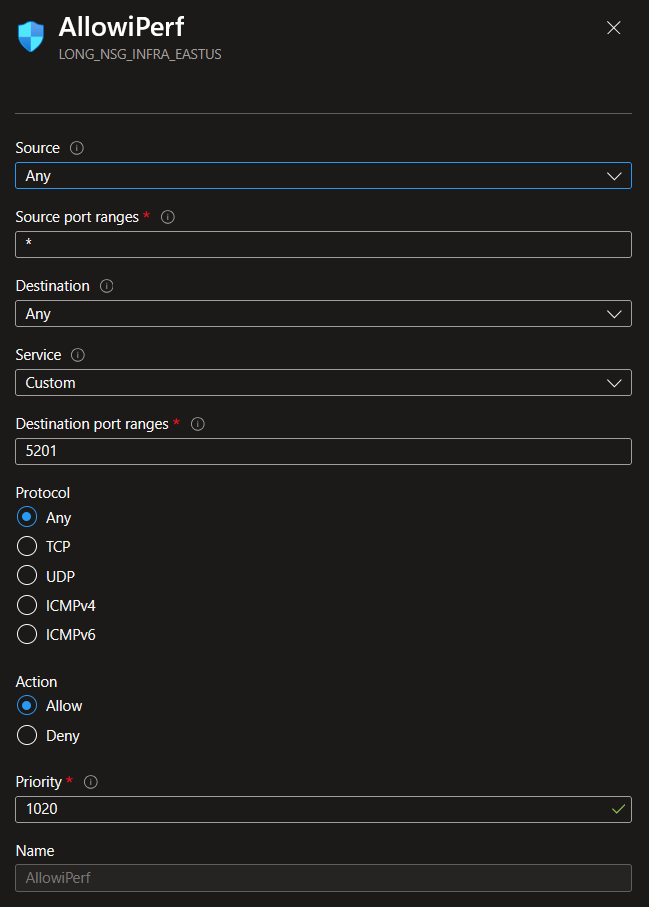
Once you got the rule allowance, let’s do a quick test with either nmap or if you’re using windows, Test-NetConnection
LINUX> nmap -p 5001 -Pn 52.226.130.182
[...]

PORT     STATE SERVICE
5001/tcp open  commplex-link

WINDOWS> Test-NetConnection -port 5001 52.226.130.182

RemoteAddress    : 52.226.130.182
RemotePort       : 5001
TcpTestSucceeded : True
Configuring FortiGate for iPerf (Client Mode)
Great, now let’s move to our FortiGate and get to what we’re wanting to do. Here’s the commands you’ll be running for the setup:
diagnose traffictest port 5201
diagnose traffictest proto 0 #TCP = 0, UDP = 1
diagnose traffictest client-intf {YourOutboundInterface}
We can then verify we have everything set as we’d like with:
diag traffictest show

server-intf: port1
client-intf: port1
port: 5201
proto: TCP
Looks good. Now let’s reach out to that server and get our results
-cspecifies we will act as a client and connect to the server 52.226.130.182, which is running in server mode. This will be testing upload speeds
LONG-FGT-MAIN # diag traffictest run -c 52.226.130.182

Connecting to host 52.226.130.182, port 5201
[  6] local 95.100.0.2 port 4920 connected to 52.226.130.182 port 5201
[ ID] Interval           Transfer     Bitrate         Retr  Cwnd
[  6]   0.00-1.00   sec  25.2 MBytes   211 Mbits/sec    0   1.69 MBytes
[  6]   1.00-2.00   sec  86.3 MBytes   724 Mbits/sec    0   4.17 MBytes
[  6]   2.00-3.00   sec   102 MBytes   859 Mbits/sec    0   4.17 MBytes
[  6]   3.00-4.00   sec   102 MBytes   859 Mbits/sec    0   4.17 MBytes
[  6]   4.00-5.00   sec   102 MBytes   858 Mbits/sec    0   4.17 MBytes
[  6]   5.00-6.00   sec   102 MBytes   860 Mbits/sec    0   4.17 MBytes
[  6]   6.00-7.00   sec   101 MBytes   852 Mbits/sec    0   4.17 MBytes
[  6]   7.00-8.00   sec   102 MBytes   860 Mbits/sec    0   4.17 MBytes
[  6]   8.00-9.00   sec   102 MBytes   857 Mbits/sec    0   4.17 MBytes
[  6]   9.00-10.01  sec   102 MBytes   858 Mbits/sec    0   4.17 MBytes
- - - - - - - - - - - - - - - - - - - - - - - - -
[ ID] Interval           Transfer     Bitrate         Retr
[  6]   0.00-10.01  sec   930 MBytes   780 Mbits/sec    0             sender
[  6]   0.00-10.04  sec   930 MBytes   777 Mbits/sec                  receiver
Here, iperf3 transfers up to 102 MB of data each second. The Bitrate is the important section. This is the actual throughput (speed) achieved during that seconds
- The reason for the slow bitrate in the beginning is that the TCP Congestion Window had to ramp up until it reaches 4.17 MB as noted by
Cwnd.
Running Download Speed Tests

If we wanted to test download speeds, we can use -R to reverse the flow of data. This time, the server will be uploading data back to the client, thus simulating download speeds:
LONG-FGT-MAIN # diag traffictest run -c 52.226.130.182 -R

Connecting to host 52.226.130.182, port 5201
Reverse mode, remote host 52.226.130.182 is sending
[  6] local 95.100.0.2 port 18688 connected to 52.226.130.182 port 5201
[ ID] Interval           Transfer     Bitrate
[  6]   0.00-1.00   sec  37.5 MBytes   313 Mbits/sec
[  6]   1.00-2.00   sec  49.9 MBytes   419 Mbits/sec
[  6]   2.00-3.00   sec  52.0 MBytes   436 Mbits/sec
[  6]   3.00-4.00   sec  53.9 MBytes   453 Mbits/sec
[  6]   4.00-5.00   sec  55.4 MBytes   465 Mbits/sec
[  6]   5.00-6.00   sec  55.6 MBytes   467 Mbits/sec
[  6]   6.00-7.01   sec  56.8 MBytes   473 Mbits/sec
[  6]   7.01-8.00   sec  57.2 MBytes   483 Mbits/sec
[  6]   8.00-9.00   sec  57.4 MBytes   482 Mbits/sec
[  6]   9.00-10.00  sec  57.4 MBytes   481 Mbits/sec
- - - - - - - - - - - - - - - - - - - - - - - - -
[ ID] Interval           Transfer     Bitrate         Retr
[  6]   0.00-10.04  sec   537 MBytes   449 Mbits/sec  724             sender
[  6]   0.00-10.00  sec   533 MBytes   447 Mbits/sec                  receiver
Limitations and Troubleshooting
FortiGates at this time run on iperf 3.15 which is still single-threaded. That means it runs on only one CPU core. This can cause limitations for high-speed links.
- Because the FortiGate is quite optimized for TCP/UDP handling, it can handle data better and this may not be a problem.
# diag traffictest run -v
iperf 3.15 (cJSON 1.7.15)
If you’re ever finding inconsistent results. I would recommend trying the public iperf servers as a sanity check.
Also consider running multi-threaded iperf on another machine, which should be versions 3.16 and higher. You can grab the downloads at their homepage.
My Ubiquiti device, which is my true edge device has version 3.16 and can run multi-threaded. Using -P and the thread count (5)
root@Dream-Router-7:~# iperf3 -c 52.226.130.182 -P 5
[...]
[ ID] Interval           Transfer     Bitrate         Retr
[  5]   0.00-10.00  sec   190 MBytes   159 Mbits/sec   58             sender
[  5]   0.00-10.04  sec   185 MBytes   155 Mbits/sec                  receiver
[  7]   0.00-10.00  sec   211 MBytes   177 Mbits/sec  132             sender
[  7]   0.00-10.04  sec   205 MBytes   171 Mbits/sec                  receiver
[  9]   0.00-10.00  sec   198 MBytes   166 Mbits/sec   61             sender
[  9]   0.00-10.04  sec   192 MBytes   161 Mbits/sec                  receiver
[ 11]   0.00-10.00  sec   516 MBytes   433 Mbits/sec   94             sender
[ 11]   0.00-10.04  sec   504 MBytes   421 Mbits/sec                  receiver
[ 13]   0.00-10.00  sec   206 MBytes   173 Mbits/sec   35             sender
[ 13]   0.00-10.04  sec   202 MBytes   168 Mbits/sec                  receiver
[SUM]   0.00-10.00  sec  1.29 GBytes  1.11 Gbits/sec  380             sender
[SUM]   0.00-10.04  sec  1.26 GBytes  1.08 Gbits/sec                  receiver
Here we see my Bitrate SUM is 1 Gb/s
Lastly, if you wanted to test RAW upload bandwidth, without the worry of the TCP overhead, consider running UDP with jumbo sized frames
-ufor udp-b 4Gfor a bandwidth target of 4Gb/s (a value to push my UDP to its limits)-l 9000sets the MTU to 9000, decreasing frames/headers sent
root@Dream-Router-7:~# iperf3 -c 52.226.130.182 -u -b 4G -l 9000
warning: UDP block size 9000 exceeds TCP MSS 1428, may result in fragmentation / drops
Connecting to host 52.226.130.182, port 5201
[  5] local 94.22.102.101 port 53923 connected to 52.226.130.182 port 5201
[ ID] Interval           Transfer     Bitrate         Total Datagrams
[  5]   0.00-1.01   sec   165 MBytes  1.37 Gbits/sec  19248
[  5]   1.01-2.00   sec   160 MBytes  1.35 Gbits/sec  18615
[  5]   2.00-3.00   sec   159 MBytes  1.33 Gbits/sec  18523
[  5]   3.00-4.00   sec   165 MBytes  1.38 Gbits/sec  19168
[  5]   4.00-5.00   sec   158 MBytes  1.32 Gbits/sec  18356
This UDP is not very realistic from a practical standpoint as you rarely will be using jumbo UDP packets in your network. But it’s good to see what limits your ISP has.
What about Fortigate Server Mode?
Yes, FortiGate does have the ability to be in a “Server Mode”, but they are NOT designed to operate as standard iPerf servers.
I’ll leave you these docs if you’re curious, but you will see that 7.4.3 and higher don’t quite support acting as an iperf server, which is a bummer.
Troubleshooting Tip: Configure FortiGate as speed test (iperf) server